Does Your Router Have 2.4 GHz Wi‑Fi? (And What That Even Means)
A quick, plain-English guide to checking your router, understanding ISP-provided gateways, and picking a better router if you need one.
What is a router?
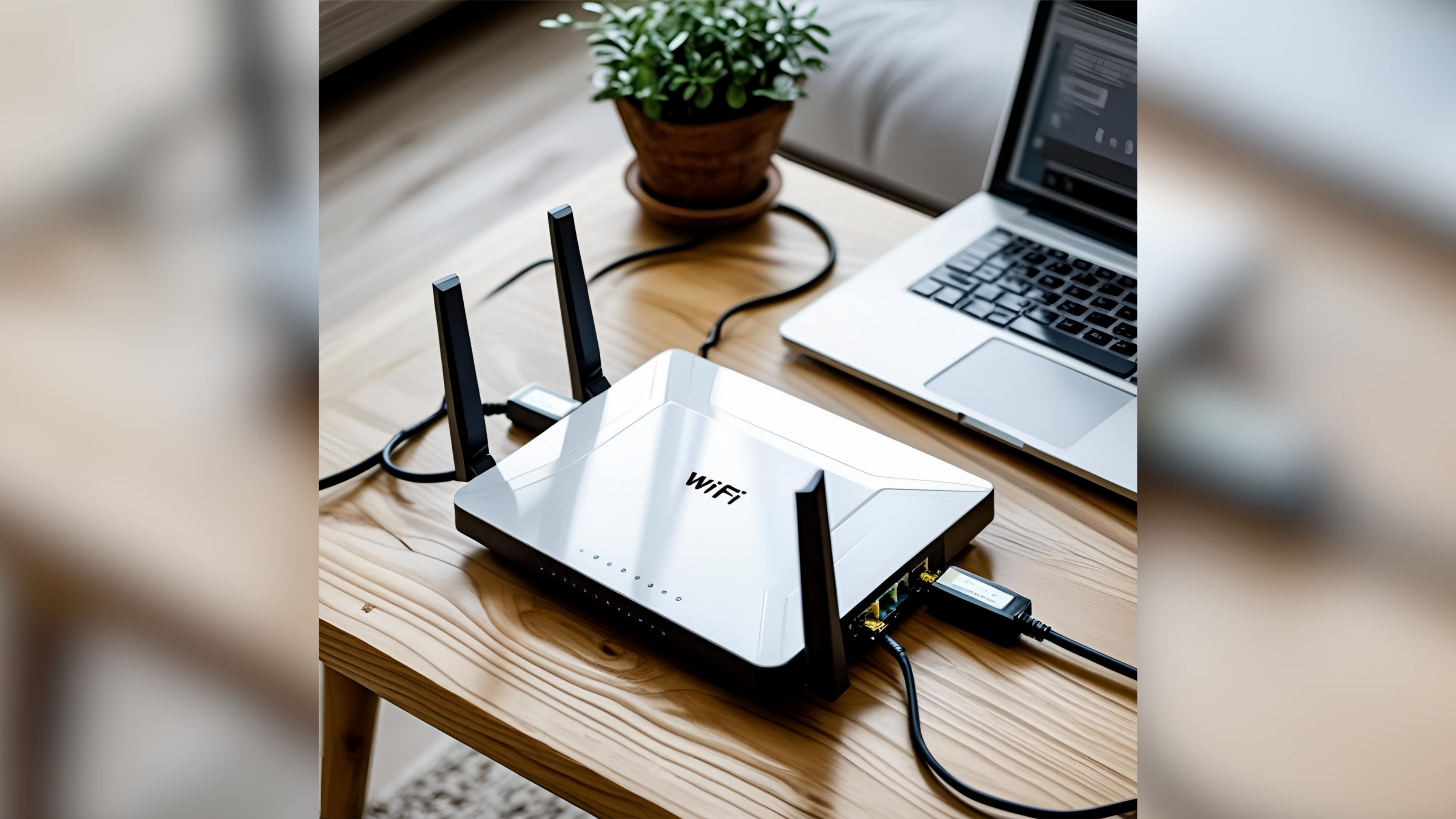
A router is the box that sits between your internet line (the modem) and your devices. It routes data to the right place and creates your home Wi‑Fi network so phones, tablets, TVs, and smart bulbs can get online.

2.4 GHz vs 5 GHz vs 6 GHz—why it matters
- 2.4 GHz: Longer range and better at going through walls, but slower speeds. Many smart‑home devices (bulbs, plugs, cameras) still require 2.4 GHz.
- 5 GHz: Faster speeds, shorter range.
- 6 GHz (Wi‑Fi 6E/7): Very fast and less crowded, but works only with newer devices and has the shortest range.
How to check if your router has 2.4 GHz Wi‑Fi
- Look at the label or spec sheet. Search your router’s model number plus “specs.” If it says “dual‑band,” it has 2.4 GHz and 5 GHz. Newer “tri‑band” mesh systems usually add a second 5 GHz or a 6 GHz band, but still include 2.4 GHz.
- Open the router app or web page. Many routers have an app. Otherwise, type a local address (often
192.168.0.1,192.168.1.1, or10.0.0.1) into a browser while connected to your Wi‑Fi. Look for Wi‑Fi settings → “2.4 GHz” and “5 GHz.” Make sure 2.4 GHz is enabled. - Check your phone’s Wi‑Fi details. Some phones show which band you’re connected to in the network details (“2.4 GHz” or “5 GHz”). If you only ever see 5 GHz and your smart device won’t join, 2.4 GHz may be off or hidden.
- Try a temporary 2.4‑only network. Many routers let you “split” the bands (give 2.4 and 5 GHz different names) or create a guest network that is 2.4‑only. Connect the smart device there, then switch back if you prefer one combined name later.
About ISP‑provided routers (gateways)
Internet service providers (ISPs) often rent you a combined modem+router (sometimes called a “gateway”). These usually have 2.4 GHz and 5 GHz built in. Some ISPs turn on a feature called band steering that merges bands under one name and automatically decides which band devices use. This can make setup easier—but it can also make it harder to force a device onto 2.4 GHz.
Can ISPs block settings? Sometimes. Certain models and app settings can limit your ability to split bands or change advanced options. If you can’t find the 2.4 GHz toggle, it may be hidden by default.
Can you contact your ISP? Yes. Call or chat support and ask:
- Does my gateway support 2.4 GHz and 5 GHz?
- Can you enable or show me how to enable 2.4 GHz?
- Can you split the SSIDs (give 2.4 and 5 GHz different names) so I can connect a smart device?
Router recommendations (good, better, best)
Any of these will give you 2.4 GHz for smart devices, plus faster bands for everything else. Pick based on home size, speed needs, and budget.
“`
Affiliate disclosure: As an Amazon Associate, we may earn from qualifying purchases made through the links below.
| Router/System | Type | Wi‑Fi Standard | Bands | Why pick it | Best for |
|---|---|---|---|---|---|
|
TP‑Link Archer AX55 (AX3000) Alt: AX55 Pro (adds 2.5G ports) |
Single router | Wi‑Fi 6 | 2.4 + 5 GHz | Reliable budget pick; simple app; plenty for 200–500 Mbps plans. | Apartments/smaller homes on a budget |
|
ASUS RT‑AX86U (AX5700) Alt: RT‑AX86U Pro |
Single router | Wi‑Fi 6 | 2.4 + 5 GHz | Great range and controls; good for gaming; lots of ports. | Families, power users |
| ASUS RT‑BE96U (Wi‑Fi 7) | Single router | Wi‑Fi 7 | 2.4 + 5 + 6 GHz | Top‑tier speeds and features; pricey but extremely fast. | Gigabit+ plans, heavy streaming/gaming |
| TP‑Link Deco XE75 (3‑pack) | Mesh system | Wi‑Fi 6E | 2.4 + 5 + 6 GHz | Easy whole‑home coverage at a good price. | Multi‑story homes, dead zones |
|
Eero 7 / Eero Pro 7 |
Mesh system | Wi‑Fi 7 | Eero 7: 2.4 + 5 GHz; Pro 7 adds 6 GHz | Very simple setup; integrates with Alexa; Matter/Thread hub. | “Set‑it‑and‑forget‑it” whole‑home Wi‑Fi |
|
NETGEAR Orbi 370 (router + 1 satellite) Alt: Orbi 370 (2‑pack variant) |
Mesh system | Wi‑Fi 7 | 2.4 + 5 + 6 GHz | Entry‑level Wi‑Fi 7 mesh for larger spaces. | Big homes needing simple mesh |
“`
If your smart device still won’t connect
- Make sure the router’s 2.4 GHz is enabled (especially after installing a new router—some hide it or merge it by default).
- Move closer to the router during setup, and temporarily turn off 5 GHz or split the bands so you can pick the 2.4 GHz name.
- Use your ISP or router app’s Guest network as a 2.4‑only network for initial pairing.
- Contact your ISP if you’re using a rented gateway and can’t find the setting—they can confirm capabilities and may enable band‑splitting for you.
Bottom line
Most routers do include 2.4 GHz—finding and enabling it is the key. If your current gateway makes that hard, call your ISP or consider your own router or mesh system for more control and better coverage.

Author: Tracy Sanders